Settings and features
Entropy displays only the features supported by the connected device
If an item is missing from a menu, the firmware normally did not expose that capability
App settings
Open Config → App settings
| Setting | Purpose |
|---|---|
| Language | Switches between the English and Russian interface |
| Key legends | Shows EN or EN/RU legends in the selected order |
| Close to tray / Run in background | Keeps Live Features and Text Expander active after closing the window; the label depends on the operating system |
| Launch at startup | Starts Entropy with the user session |
| Launch in tray / Launch minimized | Starts Entropy directly in the Windows system tray or minimized on other operating systems during automatic startup |
| Shifted number symbols | Shows shifted symbols above the number row |
| Layer hover preview | Previews a target layer while hovering over a layer key |
| Encoder hover zoom | Enlarges encoders on hover |
| Accent color | Changes the color of active interface elements |
| Diagnostics | Writes logs for troubleshooting |
| Interactive tour | Runs the interface tour again |
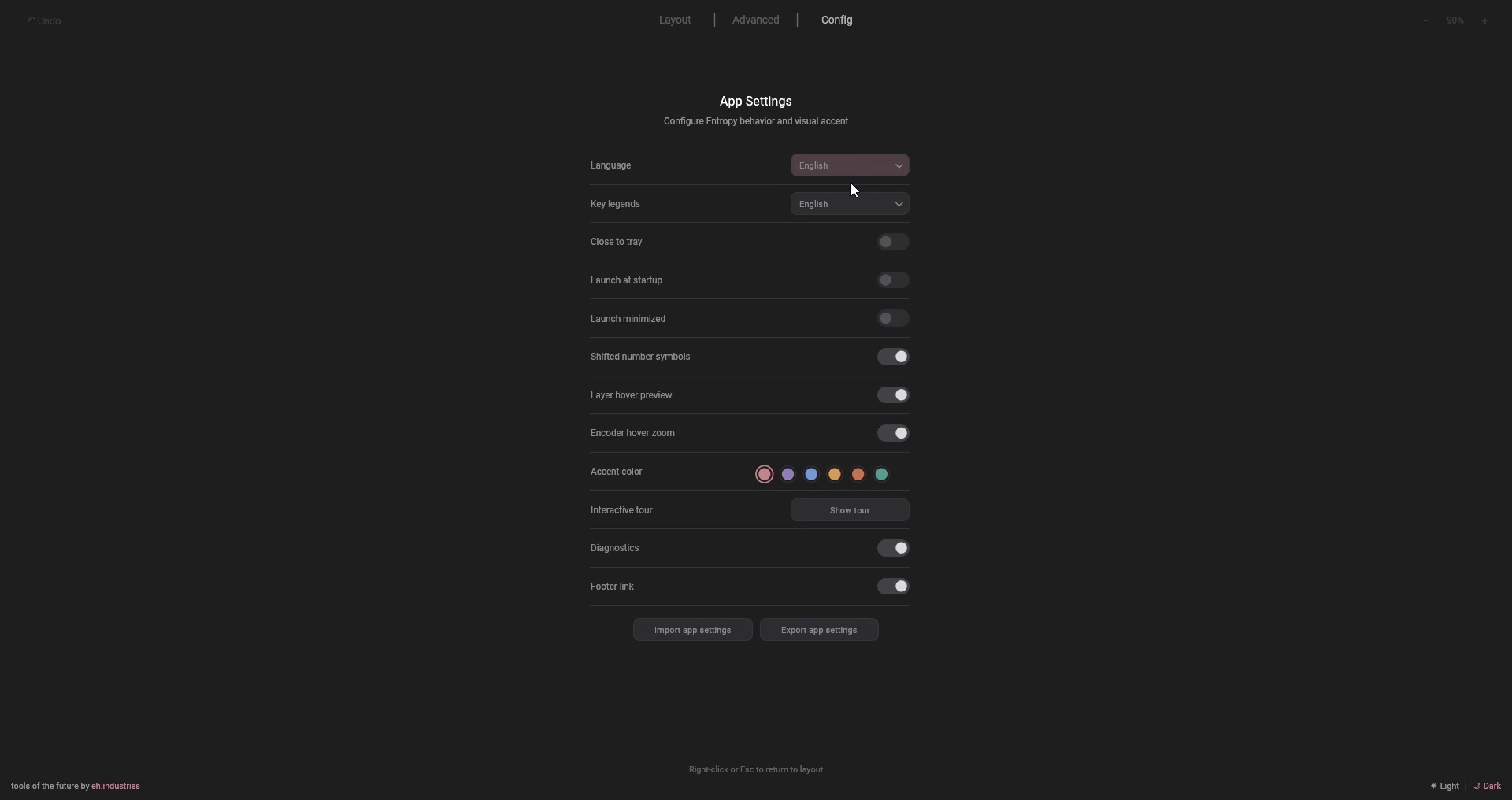
Import settings and Export settings use .entsettings files to transfer application preferences and Text Expander rules
Entropy creates an automatic backup before import. All settings files are applied as one operation: if any write fails, the application restores the previous state
On Linux, this page also provides the Vial udev rule installer
Macros
A macro runs a sequence of actions after one key press
- Click a key on the layout
- Open the Macros tab
- Select a macro slot
- Enter a name and optional description
- Add actions in the required order
- Assign the slot to the selected key
Available actions:
- Text — type text one character at a time
- Tap — press and release a key
- Down — hold a key until an
Upaction - Up — release a previously held key
- Delay — pause in milliseconds
Names and descriptions are stored locally and included in .entlayout
Changed macros are written in the background, while unchanged firmware buffers are not sent again
Tap Dance
Tap Dance assigns different actions to one key depending on how it is pressed
- Tap — short press
- Hold — hold
- Double Tap — double press
- Tap + Hold — press, then hold
On compatible RMK firmware, any of the four actions can use a Universal Symbol or Russian letter exposed as a firmware-native action
Tapping term sets the window in which the firmware distinguishes these actions
Combos
A Combo sends one action when two to four input keys are pressed together
Open Advanced → Combos, select a slot, then choose the input keys and output action
On compatible RMK firmware, each Combo can also be limited to All layers or one specific layer. Universal Symbols and Russian letters are available as outputs when the firmware advertises those actions
Combo timeout defines the maximum interval between input presses
Key Overrides
A Key Override replaces a key when its modifier and layer conditions match
- Trigger — original key
- Replacement — action to send
- Trigger modifiers — required modifiers
- Negative modifiers — conditions that block the rule
- Suppressed modifiers — modifiers hidden while the replacement is active
- Enable on layers — layers on which the rule can run
Text Expander
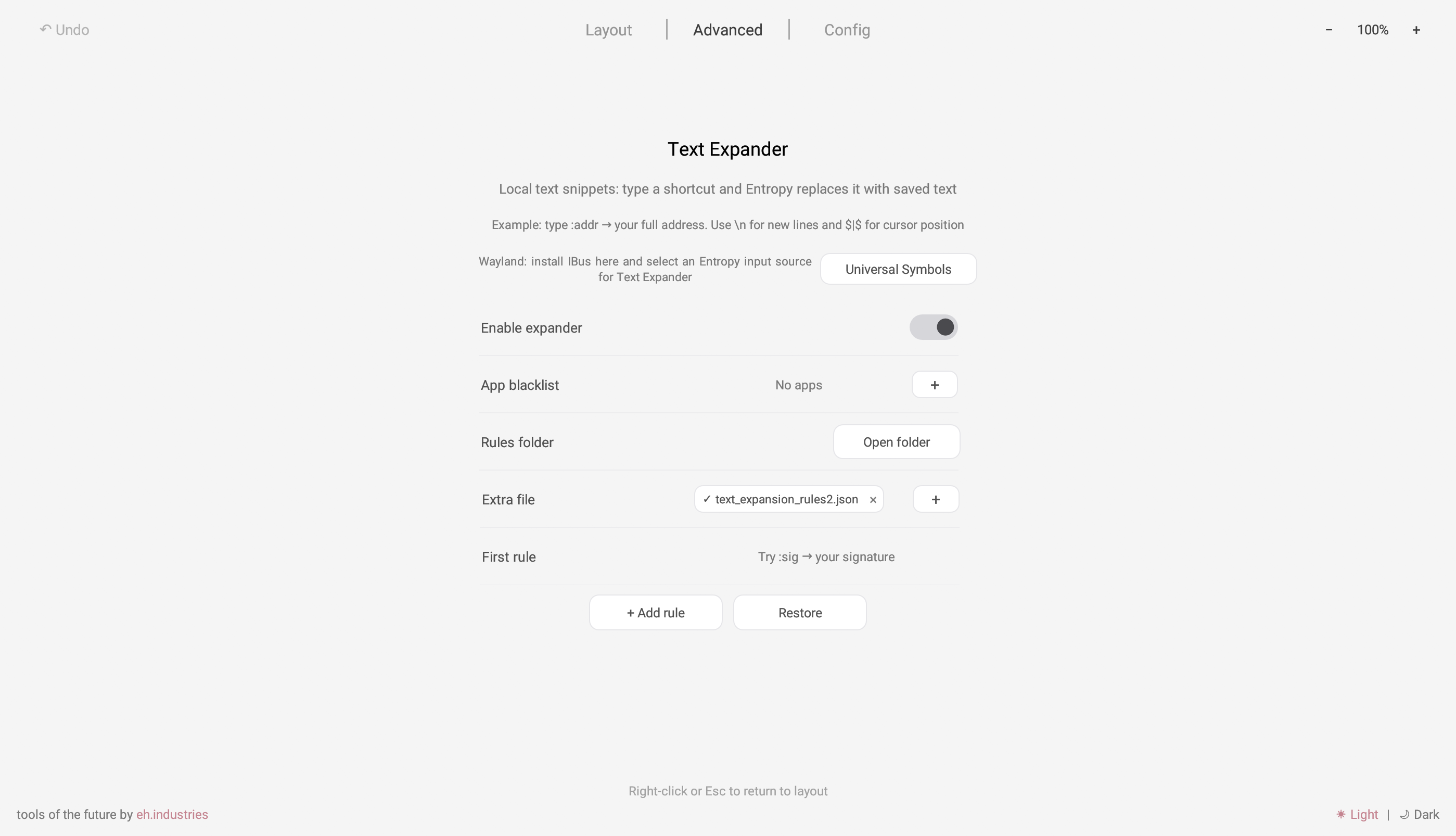
Text Expander replaces short local triggers with prepared text on the computer rather than in device firmware
Creating a rule
- Open Advanced → Text Expander
- Enable the expander
- Add a rule
- Enter a trigger such as
:mail - Enter the replacement text
A trigger must start with : or ; and cannot contain spaces
Use \n for a new line and $|$ for the cursor position after insertion
Additional features:
- Application blacklist
- Multiple JSON rule files
- Automatic reload after external edits
- Multiline templates
Operating-system support
- Windows uses the native Entropy backend
- macOS requires Accessibility and Input Monitoring
- Linux uses the Entropy IBus input source
Entropy must remain active in the background, and the Entropy Text Expander input source must be selected on Linux
Typing Trainer
Open Advanced → Typing Trainer for a local typing-speed test
- Timed mode: 15, 30, 60, or 120 seconds
- Word mode: 10, 25, 50, or 100 words
- English and Russian word sets
- Optional punctuation and digits
- WPM, accuracy, errors, and local result history
Matrix Tester
Matrix Tester displays physical switch presses and helps locate a position that does not register
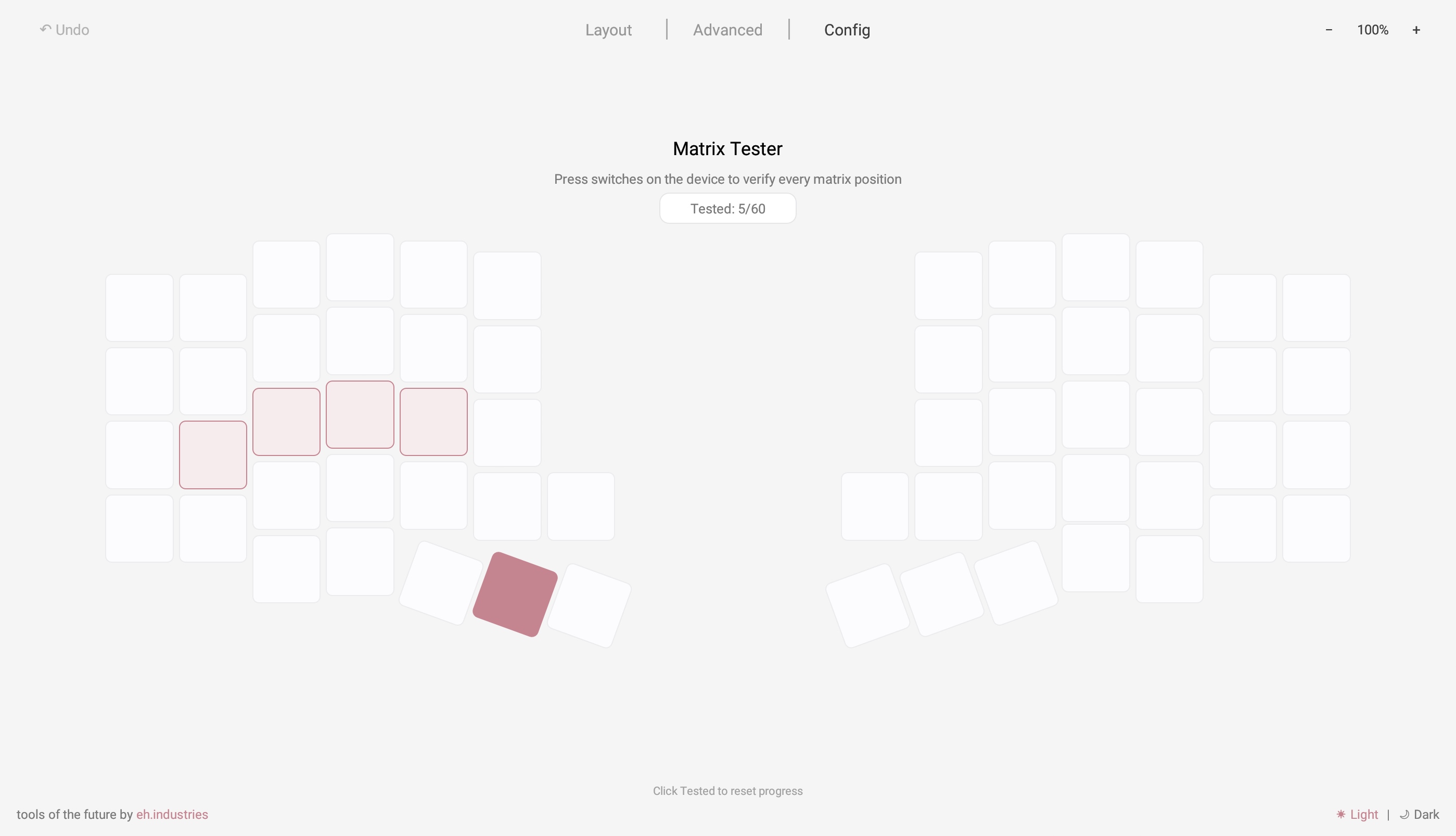
Open Config → Matrix Tester, press several keys, and watch the tested-position counter
The tester works with compatible Vial devices and may require the device to be unlocked
Layout Indicator
Layout Indicator is a separate window showing the current layer and key state
Open Layout → Layout Indicator
- Pin it above other applications
- Adjust visibility
- Show the full layout or pressed keys only
- Track the active layer, Combos, and Tap Dance actions
Live Features
Open Config → Live Features to check the data that Entropy can send to firmware
- Time sync — local computer time
- Volume sync — default output-device volume
- Media info — active artist and track title
- Layout Sync — current EN/RU layout
Entropy must keep running in the background for Live Features
See Universal Symbols for Layout Sync details
Device firmware updates
For supported Ergohaven RMK devices, Entropy automatically checks for a newer stable firmware release
- Connect the device and open Layout → About device
- Compare Firmware version, Latest firmware, and Firmware status
- Click Download to open the exact ZIP package for the connected device model and topology
- Click Changelog to view the release notes
Check runs the lookup again. If the device or its firmware does not provide a supported update profile, firmware rows and download actions are not shown
Firmware settings
Auto Shift
Sends a regular key on a tap and its shifted variant after a longer hold
You can configure the timeout, repeat behavior, and the groups of keys affected by Auto Shift
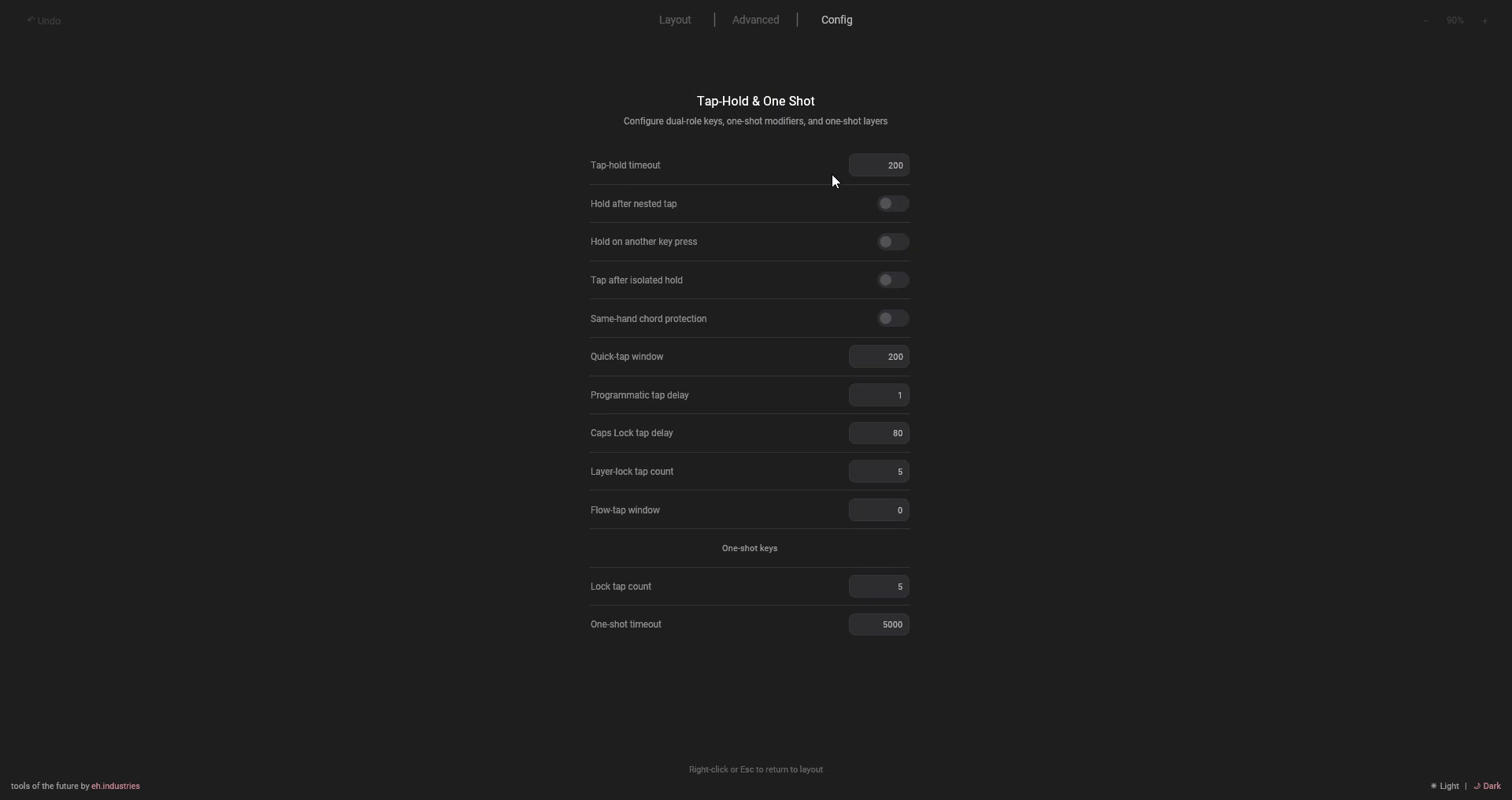
Tap-Hold and One Shot
Controls the tap/hold decision window, permissive hold, hold-on-other-key, and one-shot modifier or layer behavior
Mouse Keys
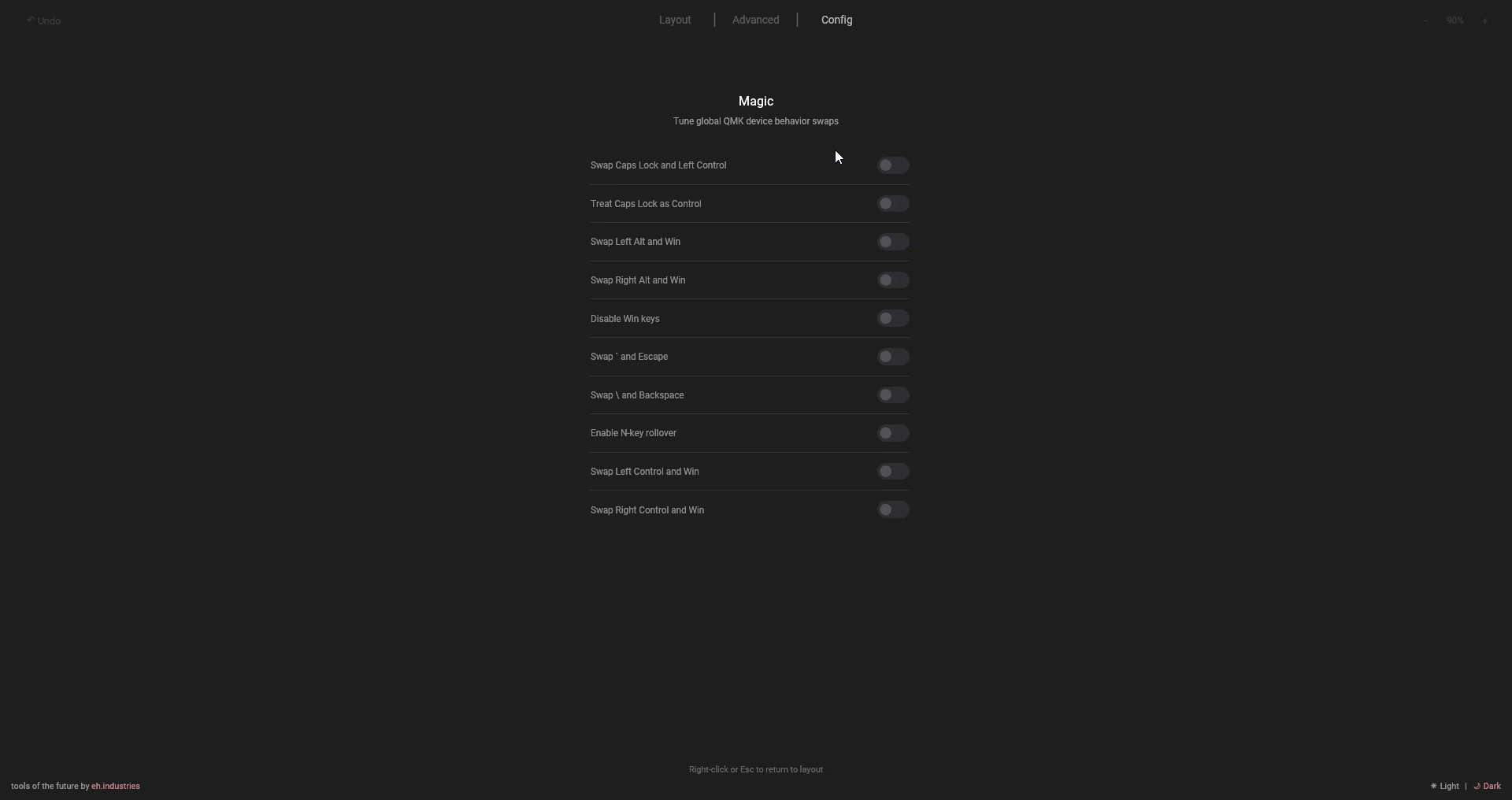
Magic and Grave Escape
Magic changes global modifier and system-key behavior
Grave Escape defines which modifiers make the combined key send Esc, `, or ~
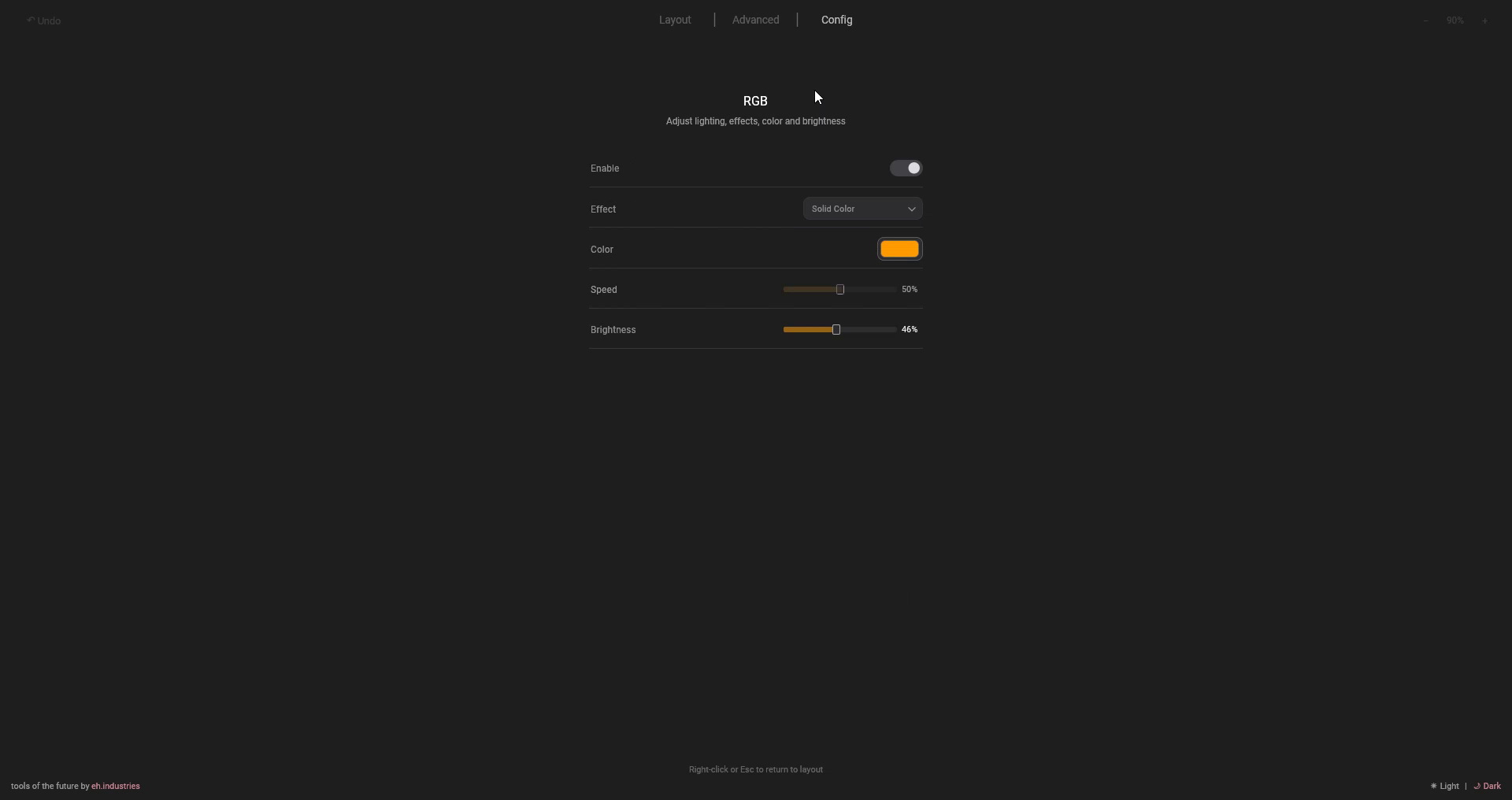
RGB and Layer LEDs
RGB controls the effect, color, speed, and brightness of compatible lighting
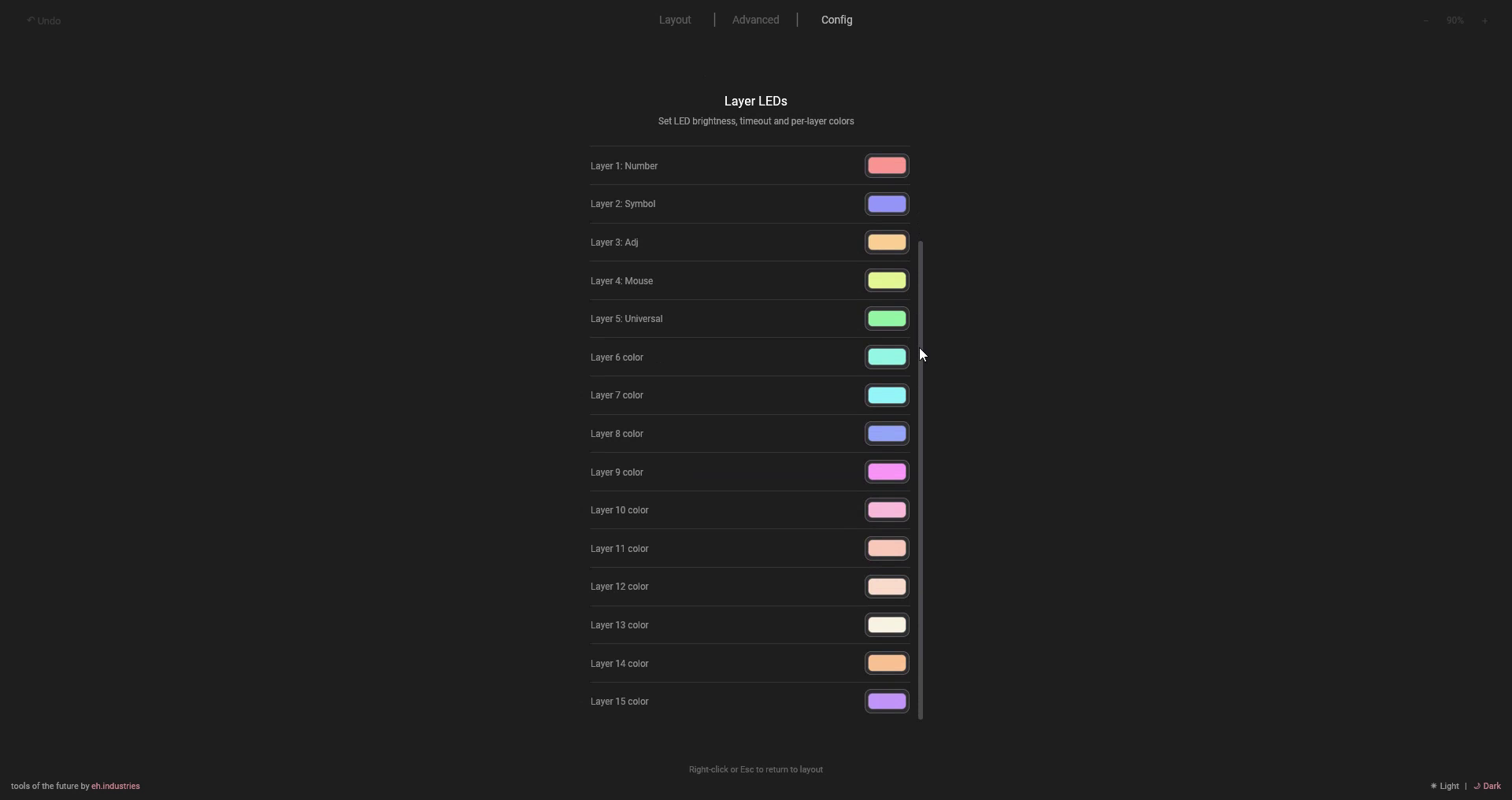
Layer LEDs set brightness, timeout, and individual colors for layers or Bluetooth profiles
Encoders, displays, and modules
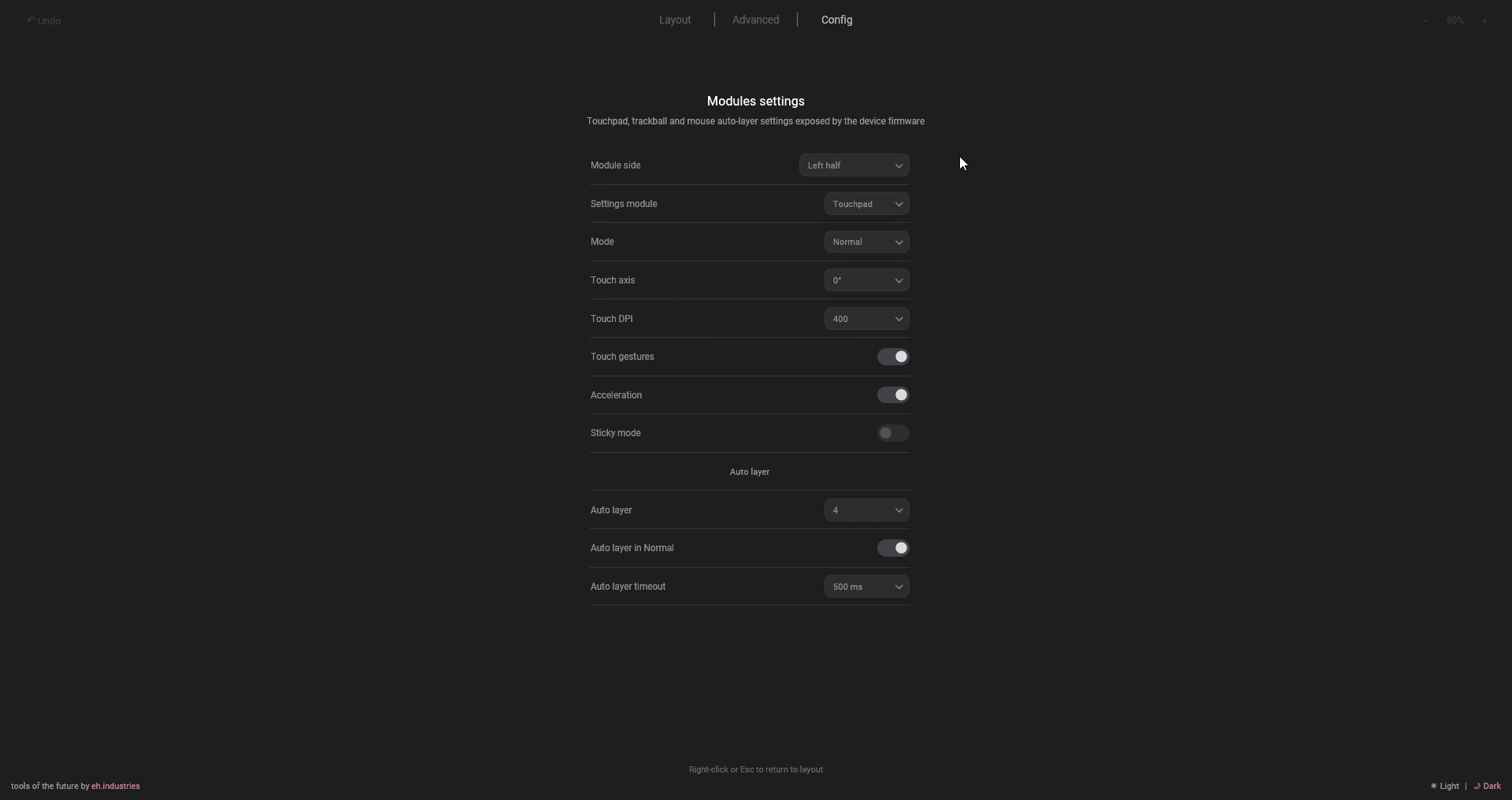
Entropy can show or hide encoders, select display presets, and change module parameters exposed by firmware
These can include pointer mode, axes, DPI, scroll sensitivity, acceleration, gestures, inversion, and automatic mouse layers
On K:04, select the module separately for the left and right halves: None, Encoder, Trackball, or Touchpad. An encoder appears on the layout only for a side set to Encoder; its press and two rotation actions remain anchored to the replaced matrix position
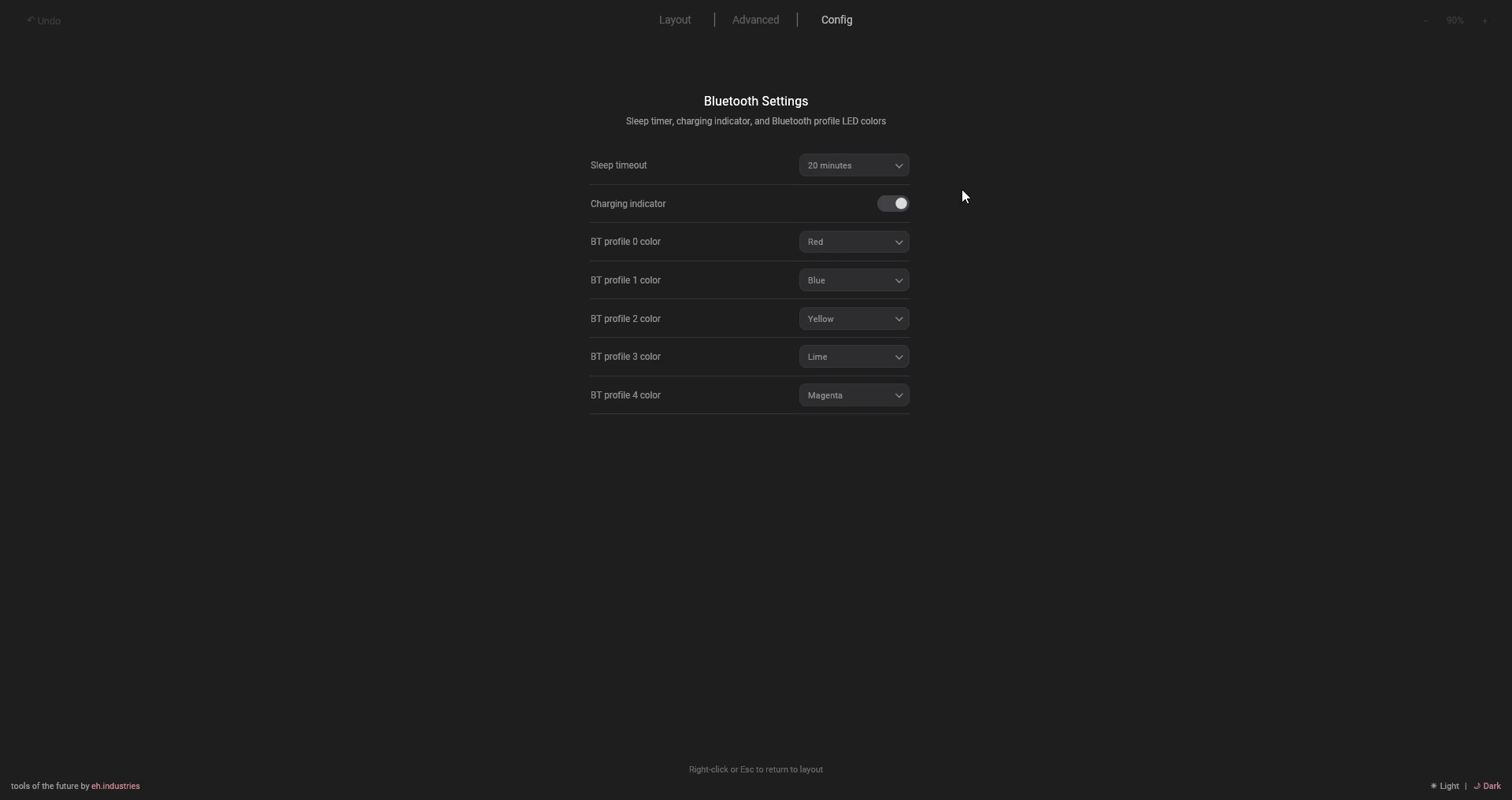
Bluetooth
Compatible firmware can expose profile controls, sleep timeouts, and other Bluetooth parameters
These settings are separate from operating-system pairing and change the behavior of the device itself