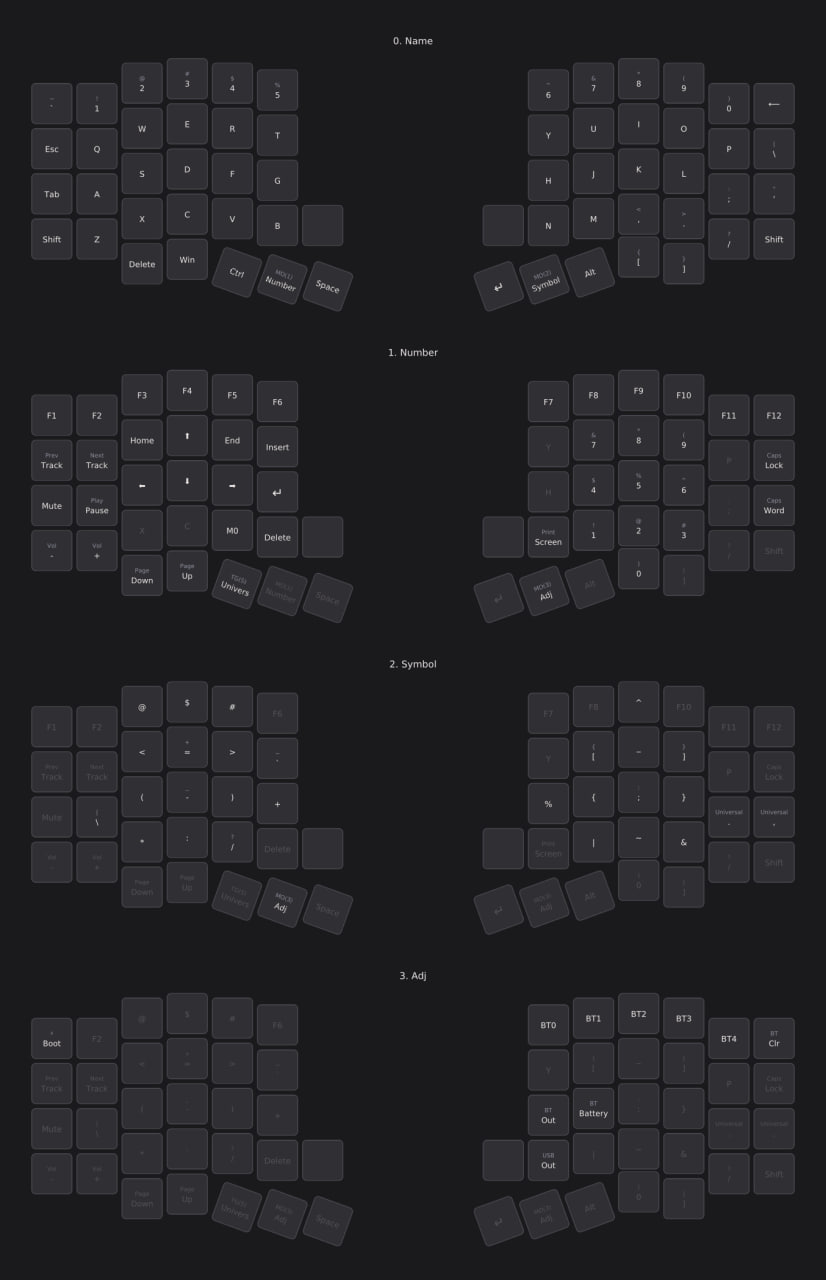
Layouts and layers
Assigning a key
- Open Layout
- Select the required layer
- Click a key or encoder action
- Select a new action in the key picker
The picker accepts a physical key press from a regular keyboard or a mouse selection
Key picker sections
| Section | Purpose |
|---|---|
| Basic | Letters, numbers, navigation, F1–F24 function keys, and numpad |
| Symbols | Symbols that depend on the active operating-system layout |
| Universal | EN/RU-independent punctuation and compatible RMK layout controls |
| Modifiers | Modifiers, layer actions, Mod+Key, Mod-Tap, and One-Shot Mod |
| Special | System, media, mouse, RGB, and special actions |
| Macros | Select and edit device macros |
| Tap Dance | Select and edit Tap Dance actions |
| Custom | Custom keycodes exposed by the firmware |
Some sections appear only when the firmware supports them
F13–F24 are available as regular function keys in the main picker and nested action pickers
Mod+Key and Mod-Tap
- Mod+Key always sends the selected modifier together with another key
- Mod-Tap acts as a regular key when tapped and as a modifier when held
- Right-click changes the secondary key, while
Ctrl + right-clickswitches the modifier side where supported
Layers
A layer is a separate set of assignments for the same physical keys
Layer 0 is normally the base layer, while higher layers contain navigation, symbols, mouse functions, media, and other actions
Switching and names
- Click the arrows beside the layer name
- Scroll the mouse wheel over the layout
- Use the
LeftandRightkeys - Click the layer name to rename it
- Hover over a layer key to preview its target layer
- Right-click a layer key to open its target layer
Layer names are saved to compatible firmware and included in .entlayout
Layer actions
| Action | Behavior |
|---|---|
MO | Activates a layer while held |
TG | Toggles a layer on or off |
OSL | Activates a layer for the next key press |
TT | Works like MO when held and toggles the layer after a series of taps |
TO | Switches to the selected layer and disables other active layers |
DF | Changes the default base layer |
LT | Sends a key when tapped and activates a layer when held |
Inherit | Inherits the assignment from a lower layer |
None | Disables the position on the current layer |
Layer operations
Open Layout → Layer operations
- Copy layer — copies all keys and compatible encoder assignments
- Paste layer — pastes the copy into a layer with matching geometry
- Mirror layer — swaps left and right positions and modifier sides
- All keys — None — disables every position on the current layer
- All keys — Inherit — inherits every position from lower layers
- Undo layer change — restores the state before the latest group operation
.entlayout import and export
Open Layout and select Export layout to save a portable backup
Depending on device capabilities, the file can include:
- Key and encoder maps
- Encoder visibility and layout geometry options
- Layer names
- Macros, Combos, Tap Dance, Key Overrides, and Alt Repeat
- Compatible portable firmware settings: Auto Shift, Tap-Hold, One Shot, Mouse Keys, Magic, Grave Escape, and touchpad options
- Layout-related Text Expander settings
During import, Entropy first creates an automatic backup of the current device and then displays a report of imported and skipped sections
On compatible RMK firmware, Universal Symbols and Russian letters used as Combo outputs or in any Tap Dance action are exported and imported without loss
Exact mapping is used for the same device, while universal mapping transfers compatible positions between different layouts
Portable settings are applied only when the target device supports a matching setting and format. The import report lists unsupported, incompatible, and failed values
Do not disconnect the device until the file has been applied
Image and PDF export
Select Layout → Export image, then choose:
- PNG, SVG, or PDF
- One or more layers
- Current, light, or dark theme
- Key legend order
PDF creates one A4 page for each selected layer and chooses the page orientation automatically