Universal Symbols
Universal Symbols let you assign punctuation that produces the same character in English and Russian operating-system layouts
A regular key sends the same HID code regardless of language, so its result depends on the active layout, while a Universal action selects the correct combination inside compatible RMK firmware
Once assigned, Universal Symbols work autonomously in firmware and do not require Entropy to stay open
Entropy is used for configuration and automatic operating-system layout synchronization
Available symbols
The Universal picker tab contains 32 ASCII punctuation characters:
. , ; : ! ? / ` ~ ' " ( ) [ ] { } < >
- + * = # @ $ % ^ & | \ _Compatible firmware also exposes the Russian letters х, б, ю, and ъ under Special → International, hold Shift for an uppercase letter
The picker does not include Unicode typography, arrows, mathematical signs, or extra currency symbols
Assignment
- Connect a compatible RMK device
- Open the required layer
- Click a key on the layout
- Open the Universal tab
- Select a punctuation character or control action
Entropy displays these assignments with a two-line Universal legend and the selected character or action name
Combos and Tap Dance
On compatible RMK firmware, Universal Symbols and Russian letters are available beyond regular key assignments:
- In Combos — as the output action
- In Tap Dance — for Tap, Hold, Double Tap, and Tap + Hold actions
Entropy preserves these actions without loss when exporting and importing .entlayout files
Control actions
| Action | Behavior | When to use it |
|---|---|---|
Toggle | Toggles the English/Russian layout and firmware state | Primary manual language-switch key |
Sync | Toggles only the firmware’s internal layout state without changing the OS layout | When the OS and firmware states no longer match |
EN | Explicitly switches the layout and firmware state to English | Dedicated switch-to-English key |
RU | Explicitly switches the layout and firmware state to Russian | Dedicated switch-to-Russian key |
macOS | Toggles Russian-layout mappings between PC and macOS | Correct punctuation on macOS |
Toggle, EN, and RU support autonomous use without Entropy
Sync does not send a system language switch, so it corrects firmware state without changing the layout already selected in the operating system
The macOS action changes the mapping table in firmware: leave PC mode enabled on Windows/Linux and use macOS mode on Apple computers
Layout Indicator highlights the active key, while the system language indicator makes the result of Toggle, EN, and RU visible
Layout Sync
Layout Sync reports the current operating-system layout to firmware and automatically corrects its internal state after a system language switch
- Open Config → Live Features
- Find Layout Sync
- Make sure the row displays ready
- Enable the switch
- Allow Entropy to keep running in the background
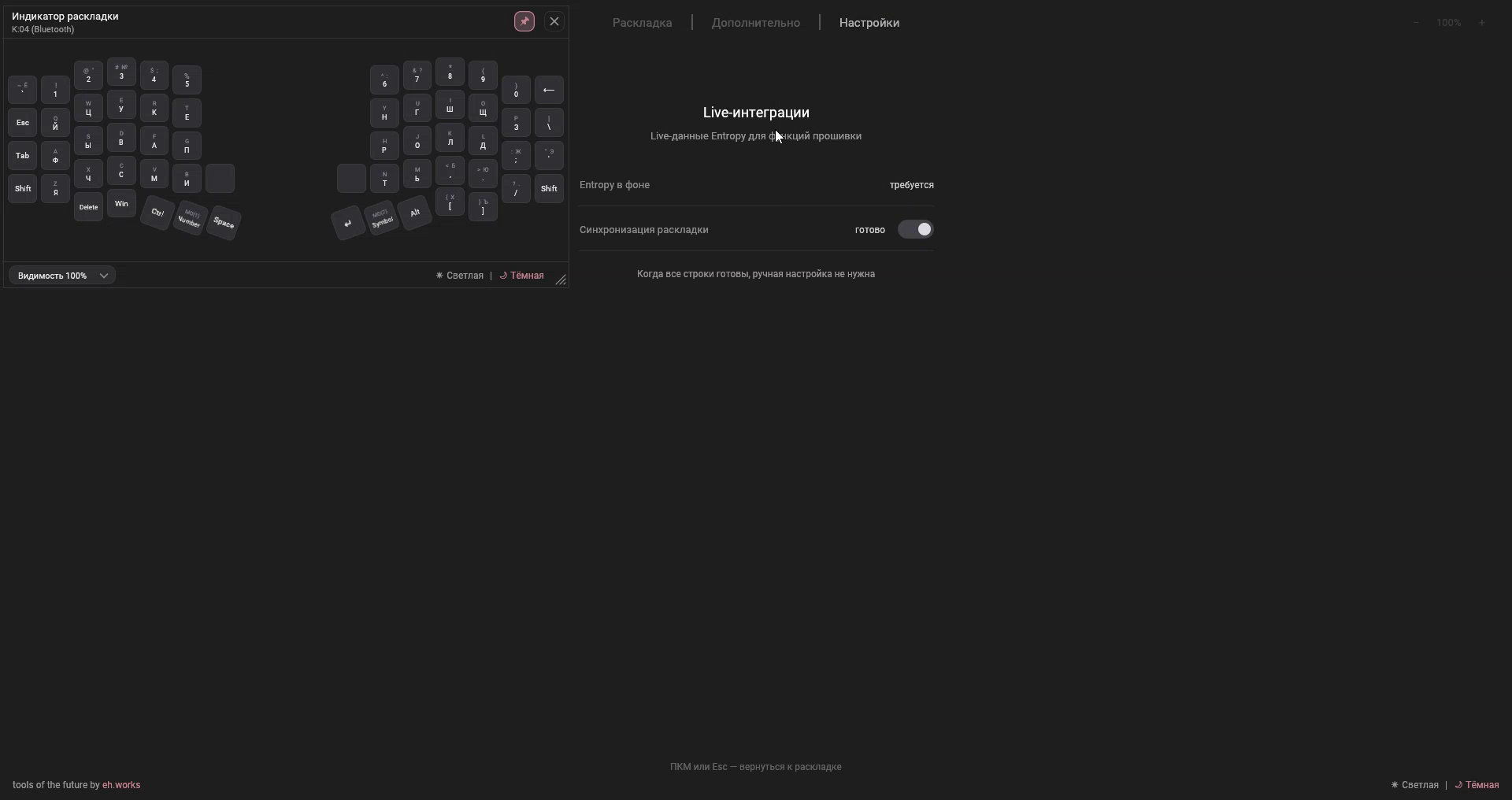
With Layout Sync enabled, you can change language through the operating system and Entropy keeps firmware state synchronized
| System | Data source |
|---|---|
| Windows | Foreground-window layout |
| KDE Plasma | Active layout over D-Bus on Wayland or X11 |
| GNOME | Active layout over IBus D-Bus on Wayland or X11 |
| Other Linux X11 environments | Active XKB group |
| macOS | Current input source |
Other Linux Wayland environments may display needs setup, in which case use the firmware control actions or a supported KDE/GNOME/X11 session
Choosing a workflow
Entropy always runs in the background
Enable Layout Sync and switch language through the operating system as usual
Keep Sync on an accessible layer as a manual recovery action
Entropy does not run in the background
Assign Toggle or dedicated EN and RU actions so firmware can manage the language autonomously
If the language was changed by another method and punctuation becomes incorrect, press Sync once and test the output
Testing
- Open a text editor
- Select the English layout
- Press an assigned Universal Symbol
- Switch to the Russian layout
- Press the same key
The same character should appear both times
If the character differs, check Layout Sync, press Sync, and verify the PC/macOS mode
If the tab is missing
- Update the device’s RMK firmware to a version with Universal Symbols
- Reconnect the device
- Wait for Entropy to load firmware capabilities automatically after reconnecting
- Make sure the device is connected through Vial-RMK rather than firmware without this capability